Binding a Virtual IP Address to an EIP or ECS
Scenarios
You can use a virtual IP address and an EIP together.
If you bind a virtual IP address to ECSs that work in active/standby pairs and bind an EIP to the virtual IP address, you can access the ECSs over the Internet.
Notes and Constraints
A virtual IP address can only be bound to one EIP.
Binding a Virtual IP Address to an EIP or ECS on the Console
Log in to the management console.
Click
 in the upper left corner and select the desired region and project.
Click
 in the upper left corner and choose Network > Virtual Private Cloud.
The Virtual Private Cloud page is displayed.
In the navigation pane on the left, choose Virtual Private Cloud > Subnets.
The Subnets page is displayed.
Click the name with a hyperlink of the subnet that the virtual IP address belongs to.
The subnet details page is displayed.
Click the IP Addresses tab.
To bind a virtual IP address to an EIP, locate the row that contains the virtual IP address and click Bind to EIP in the Operation column.
To bind a virtual IP address to an ECS, locate the row that contains the virtual IP address and click Bind to Server in the Operation column.
Select the EIP or ECS to be bound.
Note
If an ECS has multiple NICs, bind the virtual IP address to the primary NIC.
An ECS NIC can have multiple virtual IP addresses bound.
Click OK.
Important
After a virtual IP address is bound to an ECS NIC, you need to manually configure the virtual IP address on the ECS. For details, see Configuring a Virtual IP Address for an ECS.
Configuring a Virtual IP Address for an ECS
Manually configure the virtual IP address bound to an ECS.
The following OSs are used as examples here. For other OSs, see the help documents on their official websites.
Linux: CentOS 7.2 64bit and Ubuntu 22.04 server 64bit
Windows: Windows Server
Linux (CentOS 7.2 64bit is used as an example.)
Obtain the NIC that the virtual IP address is to be bound and the connection of the NIC:
nmcli connection
Information similar to the following is displayed:

The command output in this example is described as follows:
eth0 in the DEVICE column indicates the NIC that the virtual IP address is to be bound.
Wired connection 1 in the NAME column indicates the connection of the NIC.
Add the virtual IP address for the connection:
nmcli connection modify "Connection name of the NIC" +ipv4.addresses Virtual IP address
Configure the parameters as follows:
Connection name of the NIC: The connection name of the NIC obtained in 1. In this example, the connection name is Wired connection 1.
Virtual IP address: Enter the virtual IP address to be added. If you add multiple virtual IP addresses at a time, separate every two with a comma (,).
Example commands:
Adding a single virtual IP address: nmcli connection modify "Wired connection 1" +ipv4.addresses 172.16.0.125
Adding multiple virtual IP addresses: nmcli connection modify "Wired connection 1" +ipv4.addresses 172.16.0.125,172.16.0.126
Make the configuration in 2 take effect:
nmcli connection up "Connection name of the NIC"
In this example, run the following command:
nmcli connection up "Wired connection 1"
Information similar to the following is displayed:

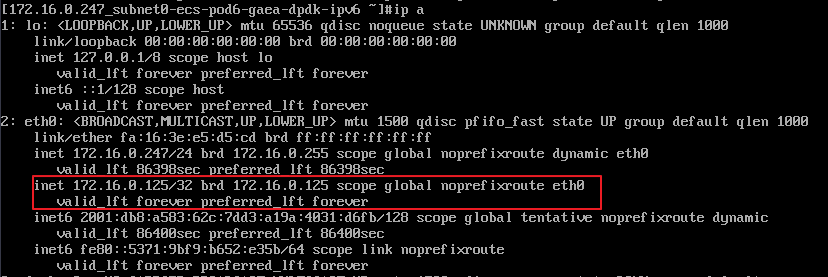
Check whether the virtual IP address has been bound:
ip a
Information similar to the following is displayed. In the command output, the virtual IP address 172.16.0.125 is bound to NIC eth0.
Note
To delete an added virtual IP address, perform the following steps:
Delete the virtual IP address from the connection of the NIC:
nmcli connection modify "Connection name of the NIC" -ipv4.addresses Virtual IP address
To delete multiple virtual IP addresses at a time, separate every two with a comma (,). Example commands are as follows:
Deleting a single virtual IP address: nmcli connection modify "Wired connection 1" -ipv4.addresses 172.16.0.125
Deleting multiple virtual IP addresses: nmcli connection modify "Wired connection 1" -ipv4.addresses 172.16.0.125,172.16.0.126
Make the deletion take effect by referring to 3.
Linux (Ubuntu 22.04 server 64bit is used as an example.)
For Ubuntu 22 or Ubuntu 20 ECSs, perform the following operations:
Obtain the NIC that the virtual IP address is to be bound:
ifconfig
Information similar to the following is displayed. In this example, the NIC bound to the virtual IP address is eth0.
root@ecs-X-ubantu:~# ifconfig
eth0: flags=4163<UP,BROADCAST,RUNNING,MULTICAST>  mtu 1500
        inet 172.16.0.210  netmask 255.255.255.0  broadcast 172.16.0.255
        inet6 fe80::f816:3eff:fe01:f1c3  prefixlen 64  scopeid 0x20<link>
        ether fa:16:3e:01:f1:c3  txqueuelen 1000  (Ethernet)
        RX packets 43915  bytes 63606486 (63.6 MB)
        RX errors 0  dropped 0  overruns 0  frame 0
        TX packets 3364  bytes 455617 (455.6 KB)
        TX errors 0  dropped 0 overruns 0  carrier 0  collisions 0
...
Switch to the /etc/netplan directory:
cd /etc/netplan
Add a virtual IP address to the NIC.
Open the configuration file 01-netcfg.yaml:
vim 01-netcfg.yaml
Press i to enter the editing mode.
In the NIC configuration area, add a virtual IP address.
In this example, add a virtual IP address for eth0:
addresses:
- 172.16.0.26/32
The file content is as follows:
network:
    version: 2
    renderer: NetworkManager
    ethernets:
        eth0:
            dhcp4: true
            addresses:
            - 172.16.0.26/32
        eth1:
            dhcp4: true
        eth2:
            dhcp4: true
        eth3:
            dhcp4: true
        eth4:
            dhcp4: true
Press Esc, enter :wq!, save the configuration, and exit.
Make the configuration in 3 take effect:
netplan apply
Check whether the virtual IP address has been bound:
ip a
Information similar to the following is displayed. In the command output, the virtual IP address 172.16.0.26 is bound to NIC eth0.
root@ecs-X-ubantu:/etc/netplan# ip a
...
2: eth0: <BROADCAST,MULTICAST,UP,LOWER_UP> mtu 1500 qdisc fq_codel state UP group default qlen 1000
    link/ether fa:16:3e:01:f1:c3 brd ff:ff:ff:ff:ff:ff
    altname enp0s3
    altname ens3
    inet 172.16.0.26/32 scope global noprefixroute eth0
       valid_lft forever preferred_lft forever
    inet 172.16.0.210/24 brd 172.16.0.255 scope global dynamic noprefixroute eth0
       valid_lft 107999971sec preferred_lft 107999971sec
    inet6 fe80::f816:3eff:fe01:f1c3/64 scope link
       valid_lft forever preferred_lft forever
Windows OS (Windows Server is used as an example here.)
In Control Panel, click Network and Sharing Center, and click the corresponding local connection.
On the displayed page, click Properties.
On the Network tab page, select Internet Protocol Version 4 (TCP/IPv4).
Click Properties.
Select Use the following IP address and set IP address to the private IP address of the ECS, for example, 10.0.0.101.
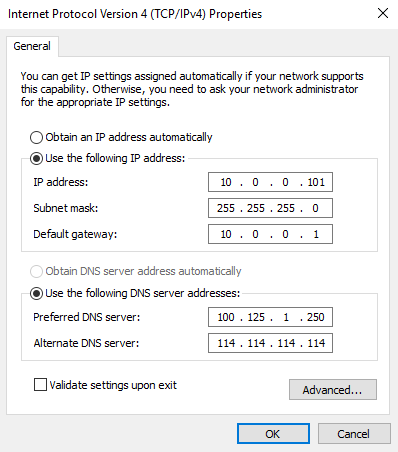
Figure 1 Configuring private IP address
Click Advanced.
On the IP Settings tab, click Add in the IP addresses area.
Add the virtual IP address, for example, 10.0.0.154.
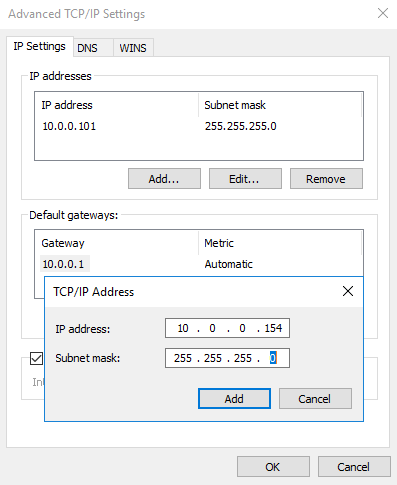
Figure 2 Configuring virtual IP address
Click OK.
In the Start menu, open the Windows command line window and run the following command to check whether the virtual IP address has been configured:
ipconfig /all
In the command output, IPv4 Address is the virtual IP address 10.0.0.154, indicating that the virtual IP address of the ECS NIC has been correctly configured.